Last year, I deployed our first LLM application to Cloud Run. What should have taken hours took three days. Cold starts killed our latency. Memory limits caused crashes. Timeouts broke long-running requests. After deploying 20+ LLM applications to Cloud Run, I’ve learned what works and what doesn’t. Here’s the complete guide.

Why Cloud Run for LLM Applications?
Cloud Run is perfect for LLM applications because:
- Serverless scaling: Handles traffic spikes automatically
- Pay-per-use: Only pay for actual request processing time
- Container-based: Full control over runtime and dependencies
- Global deployment: Deploy to multiple regions for low latency
- Built-in HTTPS: SSL/TLS handled automatically
But LLM applications have unique requirements that need careful configuration.
Key Challenges
LLM applications on Cloud Run face specific challenges:
- Cold starts: First request after idle period is slow
- Memory requirements: LLM models need significant RAM
- Request timeouts: LLM generation can take 30+ seconds
- Concurrent requests: Need to handle multiple requests efficiently
- Cost optimization: Balance performance and cost
Container Configuration
Start with a proper Dockerfile optimized for LLM applications:
# Use Python slim image for smaller size
FROM python:3.11-slim

# Set working directory
WORKDIR /app

# Install system dependencies
RUN apt-get update && apt-get install -y \
    gcc \
    g++ \
    && rm -rf /var/lib/apt/lists/*

# Copy requirements first (for better caching)
COPY requirements.txt .
RUN pip install --no-cache-dir -r requirements.txt

# Copy application code
COPY . .

# Set environment variables
ENV PORT=8080
ENV PYTHONUNBUFFERED=1

# Expose port
EXPOSE 8080

# Use gunicorn for production
CMD exec gunicorn --bind :$PORT --workers 2 --threads 4 --timeout 300 app:app
Cloud Run Service Configuration
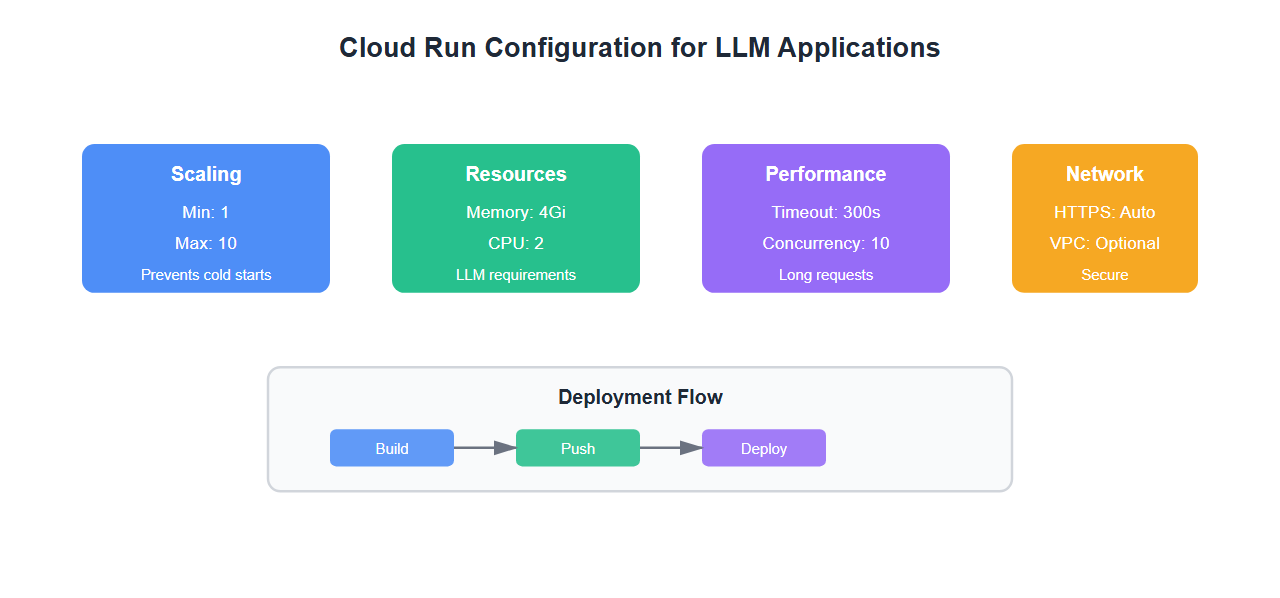
Critical settings for LLM applications:
# cloud-run-service.yaml
apiVersion: serving.knative.dev/v1
kind: Service
metadata:
  name: llm-application
  annotations:
    run.googleapis.com/ingress: all
    run.googleapis.com/execution-environment: gen2
spec:
  template:
    metadata:
      annotations:
        # Minimum instances to prevent cold starts
        autoscaling.knative.dev/minScale: "1"
        # Maximum instances for cost control
        autoscaling.knative.dev/maxScale: "10"
        # CPU allocation
        run.googleapis.com/cpu-throttling: "false"
        # Timeout for long-running LLM requests
        run.googleapis.com/timeout: "300s"
    spec:
      containerConcurrency: 10
      timeoutSeconds: 300
      containers:
      - image: gcr.io/PROJECT_ID/llm-app:latest
        ports:
        - containerPort: 8080
        env:
        - name: MODEL_NAME
          value: "gpt-4"
        - name: MAX_TOKENS
          value: "2000"
        resources:
          limits:
            cpu: "2"
            memory: "4Gi"
Handling Cold Starts
Cold starts are the biggest challenge. Here’s how to minimize them:
1. Set Minimum Instances
gcloud run services update llm-application \
    --min-instances=1 \
    --region=us-central1
This keeps at least one instance warm, eliminating cold starts for most traffic.
2. Optimize Container Startup
# app.py - Optimize imports and initialization
import os
from flask import Flask, request, jsonify
import openai

app = Flask(__name__)

# Initialize clients at module level (not in request handler)
# This happens during container startup, not per-request
openai_client = openai.OpenAIClient(api_key=os.getenv('OPENAI_API_KEY'))

# Warm-up endpoint
@app.route('/health', methods=['GET'])
def health():
    return jsonify({'status': 'healthy'}), 200

# Main LLM endpoint
@app.route('/generate', methods=['POST'])
def generate():
    data = request.json
    prompt = data.get('prompt')

    response = openai_client.chat.completions.create(
        model="gpt-4",
        messages=[{"role": "user", "content": prompt}],
        max_tokens=2000
    )

    return jsonify({
        'response': response.choices[0].message.content
    }), 200

if __name__ == '__main__':
    app.run(host='0.0.0.0', port=int(os.environ.get('PORT', 8080)))
3. Use Startup Probe
Cloud Run automatically calls your health endpoint. Make it fast:
@app.route('/health', methods=['GET'])
def health():
    # Fast health check - don't initialize heavy resources here
    return jsonify({'status': 'healthy'}), 200
Memory Configuration
LLM applications need careful memory management:
| Model | Recommended Memory | CPU | Concurrency |
|---|---|---|---|
| GPT-3.5 Turbo | 2Gi | 1 | 10 |
| GPT-4 | 4Gi | 2 | 5 |
| Claude 3 Opus | 4Gi | 2 | 5 |
| Local Models | 8Gi+ | 4 | 2 |
Request Timeout Configuration
LLM generation can take time. Configure appropriate timeouts:
# Set timeout to 5 minutes for long generations
gcloud run services update llm-application \
    --timeout=300 \
    --region=us-central1
Also configure your HTTP client timeouts:
import httpx

# Use httpx with appropriate timeout
client = httpx.AsyncClient(
    timeout=httpx.Timeout(300.0),  # 5 minutes
    limits=httpx.Limits(max_connections=10, max_keepalive_connections=5)
)

async def call_llm(prompt):
    response = await client.post(
        "https://api.openai.com/v1/chat/completions",
        json={"model": "gpt-4", "messages": [{"role": "user", "content": prompt}]},
        timeout=300.0
    )
    return response.json()
Deployment Strategy
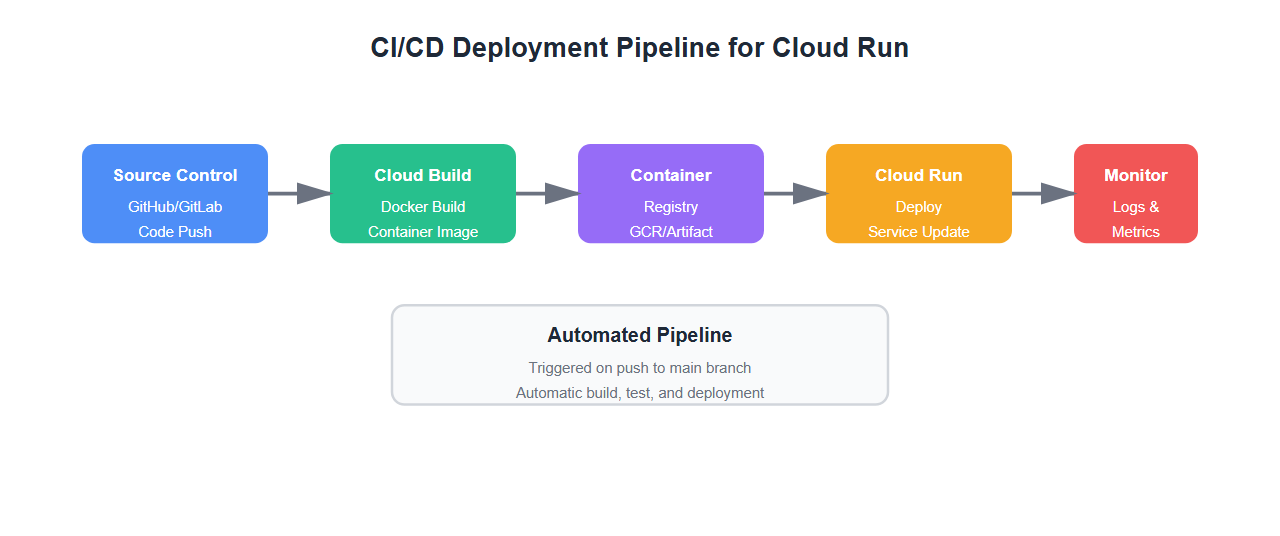
Use a proper CI/CD pipeline:
# .github/workflows/deploy-cloud-run.yml
name: Deploy to Cloud Run

on:
  push:
    branches: [main]

jobs:
  deploy:
    runs-on: ubuntu-latest
    steps:
    - uses: actions/checkout@v3

    - name: Set up Cloud SDK
      uses: google-github-actions/setup-gcloud@v1
      with:
        service_account_key: ${{ secrets.GCP_SA_KEY }}
        project_id: ${{ secrets.GCP_PROJECT_ID }}

    - name: Configure Docker
      run: gcloud auth configure-docker

    - name: Build and push container
      run: |
        docker build -t gcr.io/${{ secrets.GCP_PROJECT_ID }}/llm-app:${{ github.sha }} .
        docker push gcr.io/${{ secrets.GCP_PROJECT_ID }}/llm-app:${{ github.sha }}

    - name: Deploy to Cloud Run
      run: |
        gcloud run deploy llm-application \
          --image gcr.io/${{ secrets.GCP_PROJECT_ID }}/llm-app:${{ github.sha }} \
          --region us-central1 \
          --platform managed \
          --allow-unauthenticated \
          --memory 4Gi \
          --cpu 2 \
          --timeout 300 \
          --min-instances 1 \
          --max-instances 10
Monitoring and Observability
Monitor your LLM application properly:
from google.cloud import logging
import time

# Set up Cloud Logging
client = logging.Client()
logger = client.logger('llm-application')

@app.route('/generate', methods=['POST'])
def generate():
    start_time = time.time()

    try:
        data = request.json
        prompt = data.get('prompt')

        # Log request
        logger.log_struct({
            'severity': 'INFO',
            'message': 'LLM request received',
            'prompt_length': len(prompt),
            'model': 'gpt-4'
        })

        response = openai_client.chat.completions.create(
            model="gpt-4",
            messages=[{"role": "user", "content": prompt}],
            max_tokens=2000
        )

        latency = time.time() - start_time

        # Log response
        logger.log_struct({
            'severity': 'INFO',
            'message': 'LLM request completed',
            'latency_ms': latency * 1000,
            'tokens': response.usage.total_tokens
        })

        return jsonify({
            'response': response.choices[0].message.content,
            'latency_ms': latency * 1000
        }), 200

    except Exception as e:
        logger.log_struct({
            'severity': 'ERROR',
            'message': 'LLM request failed',
            'error': str(e)
        })
        return jsonify({'error': str(e)}), 500
Cost Optimization
Optimize costs without sacrificing performance:
- Right-size instances: Don’t over-provision memory or CPU
- Use min-instances wisely: Balance cold starts vs. idle costs
- Optimize concurrency: Higher concurrency = fewer instances needed
- Cache responses: Reduce redundant LLM API calls
- Use appropriate models: Don’t use GPT-4 for simple tasks
Best Practices
From deploying 20+ LLM applications to Cloud Run:
- Always set min-instances: Prevents cold starts for production workloads
- Configure appropriate timeouts: LLM requests can take 30+ seconds
- Monitor memory usage: Set alerts at 80% memory utilization
- Use health checks: Fast health endpoint for startup probes
- Optimize container size: Smaller containers = faster cold starts
- Set CPU allocation: Disable CPU throttling for consistent performance
- Use regional deployment: Deploy to multiple regions for redundancy
- Implement retries: Handle transient failures gracefully
🎯 Key Takeaway
Cloud Run is excellent for LLM applications, but requires careful configuration: set min-instances to prevent cold starts, allocate sufficient memory, configure long timeouts, and monitor everything. With the right setup, you get serverless scaling with production-grade performance.
Common Mistakes
What I learned the hard way:
- Not setting min-instances: Cold starts killed our user experience
- Under-provisioning memory: Caused OOM crashes during peak traffic
- Default timeouts: 60-second timeout broke long-running generations
- CPU throttling enabled: Caused inconsistent latency
- No health checks: Cloud Run couldn’t verify container health
- Large container images: Slowed down deployments and cold starts
Bottom Line
Cloud Run is perfect for LLM applications when configured correctly. Set min-instances, allocate sufficient memory, configure long timeouts, and monitor everything. The serverless model gives you automatic scaling without managing infrastructure. Get the configuration right, and you’ll have a production-ready LLM deployment.
Discover more from C4: Container, Code, Cloud & Context
Subscribe to get the latest posts sent to your email.