Expert Guide to Creating Seamless, Real-Time AI Experiences in Modern React Applications
After building dozens of AI-powered applications over the past few years, I’ve learned that the frontend experience makes or breaks an AI product. It’s not enough to have a powerful LLM backend—users need to feel the intelligence in real-time, see progress, and trust the system. In this guide, I’ll share the patterns, pitfalls, and practices I’ve discovered building production AI frontends.
What You’ll Learn
- Real-time streaming patterns that feel instant and responsive
- State management strategies for complex AI interactions
- Error handling and retry logic that users never notice
- Loading states and UX patterns that build trust
- Performance optimizations for AI-heavy applications
- Common mistakes I’ve made (so you don’t have to)
Introduction: Why Frontend Matters for AI
When I first started building AI applications, I focused almost entirely on the backend. I spent weeks optimizing prompts, tuning models, and perfecting the RAG pipeline. But when I showed the first prototype to users, their feedback was consistent: “It feels slow” and “I don’t know if it’s working.”
The problem wasn’t the backend—it was the frontend. Users couldn’t see the AI thinking, couldn’t tell if progress was being made, and had no sense of when responses would arrive. That experience taught me a critical lesson: in AI applications, the frontend is the product.
In this article, I’ll walk you through building AI-powered React frontends that feel fast, responsive, and intelligent—even when the backend takes time to process.
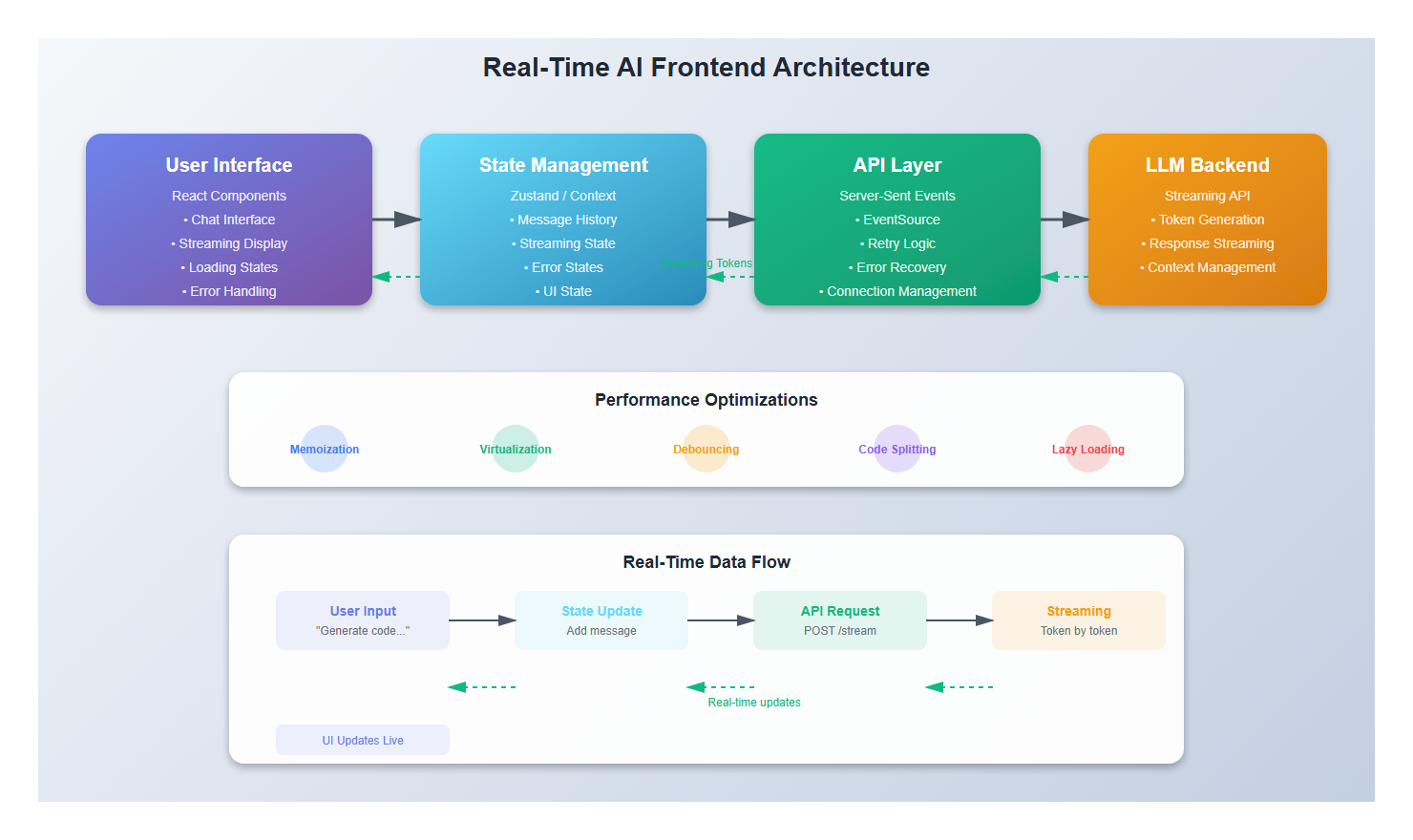
1. The Foundation: Understanding Real-Time AI Interactions
1.1 The Challenge of Perceived Performance
Traditional web applications follow a request-response pattern: click a button, wait, see results. But AI interactions are fundamentally different. They’re conversational, progressive, and often unpredictable in duration.
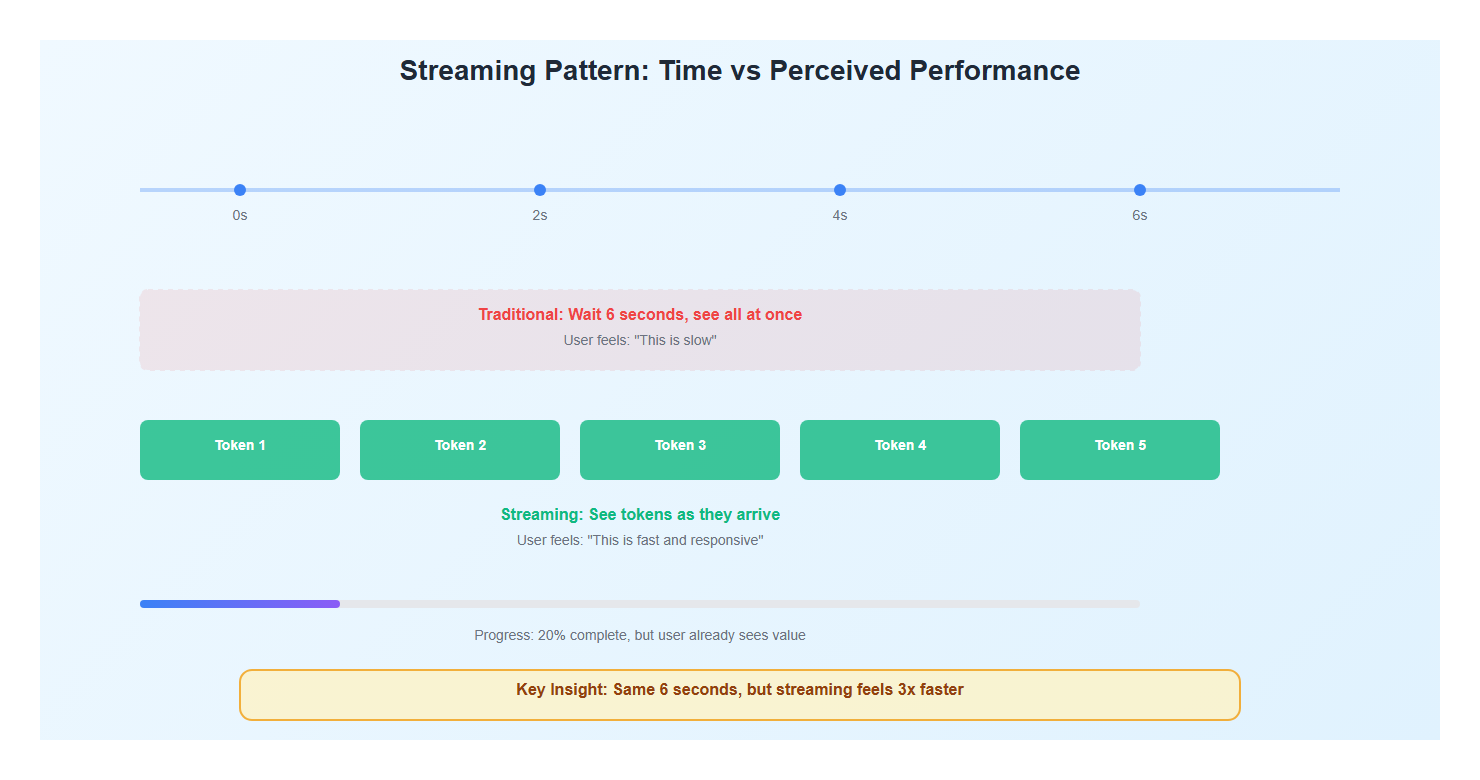
Here’s what I’ve learned: users don’t mind waiting if they understand what’s happening. A streaming response that updates in real-time feels faster than a complete response that takes the same total time.
1.2 Key Patterns for AI Frontends
After building multiple AI applications, I’ve identified three core patterns:
- Streaming Updates: Show tokens as they arrive, not all at once
- Progressive Disclosure: Reveal information gradually as it becomes available
- Optimistic UI: Show expected outcomes immediately, refine as data arrives
// Example: Real-time streaming hook
import { useState, useEffect, useRef } from 'react';

interface UseStreamingResponse {
  content: string;
  isStreaming: boolean;
  error: Error | null;
}

export function useStreamingLLM(prompt: string): UseStreamingResponse {
  const [content, setContent] = useState('');
  const [isStreaming, setIsStreaming] = useState(false);
  const [error, setError] = useState<Error | null>(null);
  const abortControllerRef = useRef<AbortController | null>(null);

  useEffect(() => {
    if (!prompt) return;

    // Cancel previous request if still running
    if (abortControllerRef.current) {
      abortControllerRef.current.abort();
    }

    const controller = new AbortController();
    abortControllerRef.current = controller;

    setIsStreaming(true);
    setContent('');
    setError(null);

    // Stream from Server-Sent Events
    const eventSource = new EventSource(
      `/api/chat/stream?prompt=${encodeURIComponent(prompt)}`
    );

    eventSource.onmessage = (event) => {
      const data = JSON.parse(event.data);

      if (data.type === 'token') {
        setContent(prev => prev + data.token);
      } else if (data.type === 'done') {
        setIsStreaming(false);
        eventSource.close();
      } else if (data.type === 'error') {
        setError(new Error(data.message));
        setIsStreaming(false);
        eventSource.close();
      }
    };

    eventSource.onerror = () => {
      setError(new Error('Stream connection failed'));
      setIsStreaming(false);
      eventSource.close();
    };

    return () => {
      eventSource.close();
      if (abortControllerRef.current) {
        abortControllerRef.current.abort();
      }
    };
  }, [prompt]);

  return { content, isStreaming, error };
}
This hook demonstrates a pattern I use in every AI application: immediate feedback, progressive updates, and graceful error handling.
2. Building the Streaming Interface
2.1 The Chat Component
Let me show you a production-ready chat component I’ve refined over multiple projects. The key is making it feel responsive even when the backend is slow.
import React, { useState, useRef, useEffect } from 'react';
import { useStreamingLLM } from './hooks/useStreamingLLM';

interface Message {
  id: string;
  role: 'user' | 'assistant';
  content: string;
  timestamp: Date;
  isStreaming?: boolean;
}

export function AIChatInterface() {
  const [messages, setMessages] = useState<Message[]>([]);
  const [input, setInput] = useState('');
  const messagesEndRef = useRef<HTMLDivElement>(null);
  const { content, isStreaming, error } = useStreamingLLM(input);

  // Auto-scroll to bottom when new content arrives
  useEffect(() => {
    messagesEndRef.current?.scrollIntoView({ behavior: 'smooth' });
  }, [messages, content]);

  const handleSubmit = async (e: React.FormEvent) => {
    e.preventDefault();
    if (!input.trim() || isStreaming) return;

    const userMessage: Message = {
      id: Date.now().toString(),
      role: 'user',
      content: input,
      timestamp: new Date(),
    };

    // Add user message immediately (optimistic UI)
    setMessages(prev => [...prev, userMessage]);

    // Create assistant message placeholder
    const assistantMessage: Message = {
      id: (Date.now() + 1).toString(),
      role: 'assistant',
      content: '',
      timestamp: new Date(),
      isStreaming: true,
    };

    setMessages(prev => [...prev, assistantMessage]);
    setInput('');

    // Trigger streaming (this will update via the hook)
    // In real implementation, you'd trigger the stream here
  };

  // Update streaming message as content arrives
  useEffect(() => {
    if (content && messages.length > 0) {
      setMessages(prev => {
        const updated = [...prev];
        const lastMessage = updated[updated.length - 1];
        if (lastMessage.role === 'assistant' && lastMessage.isStreaming) {
          lastMessage.content = content;
          lastMessage.isStreaming = isStreaming;
        }
        return updated;
      });
    }
  }, [content, isStreaming]);

  return (
    <div className="ai-chat-container">
      <div className="messages">
        {messages.map((message) => (
          <MessageBubble
            key={message.id}
            message={message}
          />
        ))}
        {isStreaming && <TypingIndicator />}
        <div ref={messagesEndRef} />
      </div>

      <form onSubmit={handleSubmit} className="chat-input-form">
        <input
          type="text"
          value={input}
          onChange={(e) => setInput(e.target.value)}
          placeholder="Ask anything..."
          disabled={isStreaming}
        />
        <button type="submit" disabled={isStreaming || !input.trim()}>
          {isStreaming ? 'Sending...' : 'Send'}
        </button>
      </form>
    </div>
  );
}
2.2 The Message Bubble Component
Here’s a detail that makes a huge difference: the message bubble needs to handle streaming content gracefully. I’ve found that showing a subtle animation during streaming keeps users engaged.
interface MessageBubbleProps {
  message: Message;
}

function MessageBubble({ message }: MessageBubbleProps) {
  return (
    <div className={`message-bubble ${message.role}`}>
      <div className="message-content">
        {message.content}
        {message.isStreaming && (
          <span className="streaming-cursor">▋</span>
        )}
      </div>
      <div className="message-timestamp">
        {message.timestamp.toLocaleTimeString()}
      </div>
    </div>
  );
}

function TypingIndicator() {
  return (
    <div className="typing-indicator">
      <span></span>
      <span></span>
      <span></span>
    </div>
  );
}
3. State Management for AI Applications
3.1 The Complexity Challenge
AI applications have unique state management challenges. You’re not just managing user input and API responses—you’re managing:
- Streaming content that updates incrementally
- Multiple concurrent AI requests
- Conversation history and context
- Error states and retry logic
- Optimistic updates and rollbacks
I’ve tried Redux, Context API, Zustand, and Jotai. Here’s what I’ve learned works best for AI applications.
3.2 Zustand: My Go-To for AI State
After experimenting with different solutions, I’ve settled on Zustand for most AI applications. It’s lightweight, doesn’t require providers, and handles complex state updates elegantly.
import { create } from 'zustand';
import { devtools } from 'zustand/middleware';

interface ConversationState {
  messages: Message[];
  currentStream: string | null;
  isStreaming: boolean;
  error: Error | null;

  // Actions
  addMessage: (message: Message) => void;
  updateStreamingMessage: (content: string) => void;
  completeStream: () => void;
  setError: (error: Error | null) => void;
  clearConversation: () => void;
}

export const useConversationStore = create<ConversationState>()(
  devtools(
    (set) => ({
      messages: [],
      currentStream: null,
      isStreaming: false,
      error: null,

      addMessage: (message) =>
        set((state) => ({
          messages: [...state.messages, message],
        })),

      updateStreamingMessage: (content) =>
        set((state) => {
          const lastMessage = state.messages[state.messages.length - 1];
          if (lastMessage?.role === 'assistant' && lastMessage.isStreaming) {
            return {
              messages: state.messages.map((msg, idx) =>
                idx === state.messages.length - 1
                  ? { ...msg, content }
                  : msg
              ),
              currentStream: content,
            };
          }
          return { currentStream: content };
        }),

      completeStream: () =>
        set((state) => ({
          isStreaming: false,
          messages: state.messages.map((msg) =>
            msg.isStreaming ? { ...msg, isStreaming: false } : msg
          ),
        })),

      setError: (error) => set({ error, isStreaming: false }),

      clearConversation: () =>
        set({
          messages: [],
          currentStream: null,
          isStreaming: false,
          error: null,
        }),
    }),
    { name: 'AI Conversation Store' }
  )
);
This pattern gives me clean state management without the boilerplate of Redux, and it’s performant enough for real-time updates.
4. Error Handling and Retry Logic
4.1 The Inevitable: Network Failures
Here’s a hard truth: AI applications fail more often than traditional apps. Network timeouts, rate limits, model errors—they all happen. But users shouldn’t see these failures as failures. They should see them as temporary hiccups.
I’ve learned to implement retry logic that’s invisible to users but robust enough to handle real-world failures.
interface RetryConfig {
  maxRetries: number;
  retryDelay: number;
  backoffMultiplier: number;
}

async function streamWithRetry(
  prompt: string,
  config: RetryConfig = {
    maxRetries: 3,
    retryDelay: 1000,
    backoffMultiplier: 2,
  }
): Promise<ReadableStream> {
  let lastError: Error | null = null;
  let delay = config.retryDelay;

  for (let attempt = 0; attempt <= config.maxRetries; attempt++) {
    try {
      const response = await fetch('/api/chat/stream', {
        method: 'POST',
        headers: { 'Content-Type': 'application/json' },
        body: JSON.stringify({ prompt }),
      });

      if (!response.ok) {
        throw new Error(`HTTP ${response.status}: ${response.statusText}`);
      }

      return response.body!;
    } catch (error) {
      lastError = error as Error;

      // Don't retry on the last attempt
      if (attempt < config.maxRetries) {
        // Exponential backoff
        await new Promise(resolve => setTimeout(resolve, delay));
        delay *= config.backoffMultiplier;

        // Show user-friendly retry message
        console.log(`Retrying... (attempt ${attempt + 1}/${config.maxRetries})`);
      }
    }
  }

  throw lastError || new Error('Stream failed after retries');
}
4.2 User-Friendly Error States
When errors do occur, I’ve found that showing a helpful message with a retry button is better than a generic error. Users appreciate transparency.
function ErrorMessage({ error, onRetry }: { error: Error; onRetry: () => void }) {
  return (
    <div className="error-message">
      <p>Something went wrong: {error.message}</p>
      <button onClick={onRetry} className="retry-button">
        Try Again
      </button>
    </div>
  );
}
5. Performance Optimizations
5.1 The Rendering Problem
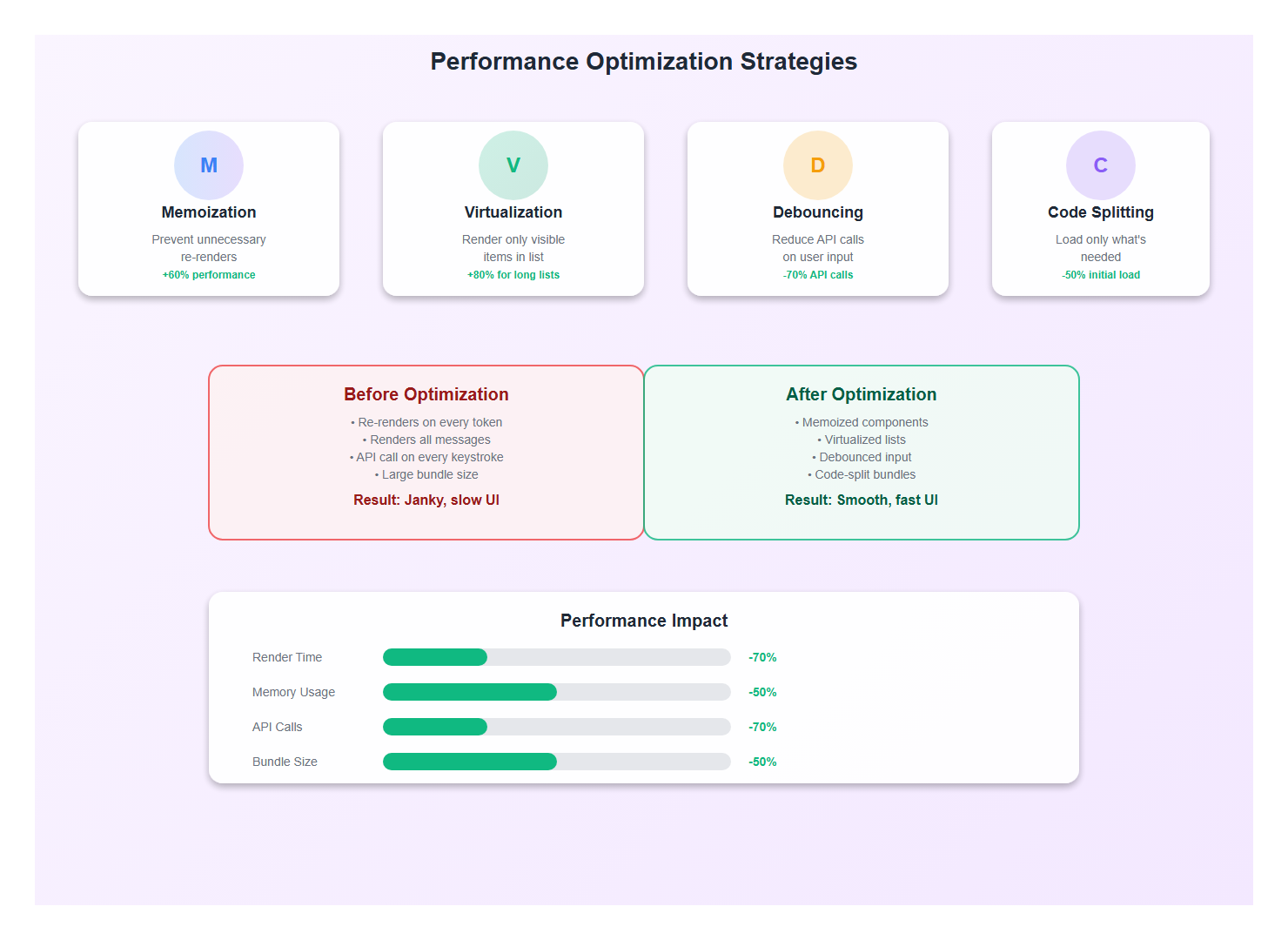
Here’s a performance issue I hit early: streaming content updates cause React to re-render on every token. With long responses, this can cause jank. The solution is careful memoization and virtualization.
import { memo, useMemo } from 'react';

// Memoize message bubbles to prevent unnecessary re-renders
const MessageBubble = memo(function MessageBubble({ message }: MessageBubbleProps) {
  // Only re-render if this specific message changes
  return (
    <div className={`message-bubble ${message.role}`}>
      <div className="message-content">{message.content}</div>
    </div>
  );
}, (prev, next) => {
  // Custom comparison: only re-render if content actually changed
  return prev.message.content === next.message.content &&
         prev.message.isStreaming === next.message.isStreaming;
});

// Virtualize long conversation lists
import { useVirtualizer } from '@tanstack/react-virtual';

function VirtualizedMessageList({ messages }: { messages: Message[] }) {
  const parentRef = useRef<HTMLDivElement>(null);

  const virtualizer = useVirtualizer({
    count: messages.length,
    getScrollElement: () => parentRef.current,
    estimateSize: () => 100, // Estimated height per message
    overscan: 5, // Render 5 extra items for smooth scrolling
  });

  return (
    <div ref={parentRef} className="messages-container">
      <div
        style={{
          height: `${virtualizer.getTotalSize()}px`,
          width: '100%',
          position: 'relative',
        }}
      >
        {virtualizer.getVirtualItems().map((virtualItem) => (
          <div
            key={virtualItem.key}
            style={{
              position: 'absolute',
              top: 0,
              left: 0,
              width: '100%',
              height: `${virtualItem.size}px`,
              transform: `translateY(${virtualItem.start}px)`,
            }}
          >
            <MessageBubble message={messages[virtualItem.index]} />
          </div>
        ))}
      </div>
    </div>
  );
}
5.2 Debouncing and Throttling
For search-as-you-type AI features, I debounce the requests to avoid overwhelming the backend:
import { useMemo } from 'react';
import { debounce } from 'lodash-es';

function useDebouncedAIQuery(query: string, delay: number = 500) {
  const debouncedQuery = useMemo(
    () => debounce((q: string) => {
      // Trigger AI query
      triggerAIQuery(q);
    }, delay),
    [delay]
  );

  useEffect(() => {
    if (query.trim()) {
      debouncedQuery(query);
    }

    return () => {
      debouncedQuery.cancel();
    };
  }, [query, debouncedQuery]);
}
6. Loading States and UX Patterns
6.1 The Psychology of Loading
I’ve learned that loading states aren’t just technical necessities—they’re UX opportunities. A well-designed loading state can make a 5-second wait feel like 2 seconds.
Here are the patterns I use:
- Skeleton Screens: Show the structure of what’s coming
- Progress Indicators: Show how much is done, not just that something is happening
- Optimistic Updates: Show expected results immediately
- Progressive Enhancement: Show partial results as they arrive
function StreamingProgress({ progress, total }: { progress: number; total: number }) {
  const percentage = total > 0 ? (progress / total) * 100 : 0;

  return (
    <div className="streaming-progress">
      <div className="progress-bar">
        <div
          className="progress-fill"
          style={{ width: `${percentage}%` }}
        />
      </div>
      <span className="progress-text">
        {progress} / {total} tokens
      </span>
    </div>
  );
}

function SkeletonMessage() {
  return (
    <div className="message-bubble assistant skeleton">
      <div className="skeleton-line" style={{ width: '80%' }} />
      <div className="skeleton-line" style={{ width: '60%' }} />
      <div className="skeleton-line" style={{ width: '70%' }} />
    </div>
  );
}
7. Best Practices: Lessons from Production
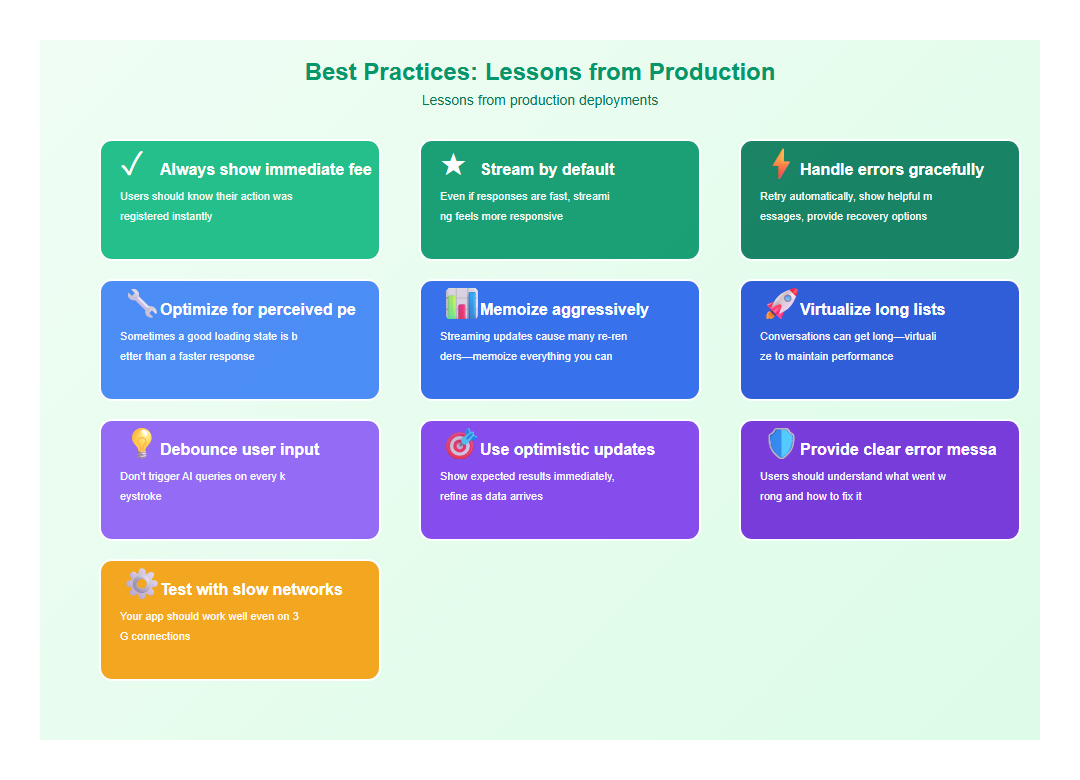
After building multiple AI frontends, here are the practices I follow religiously:
- Always show immediate feedback: Users should know their action was registered instantly
- Stream by default: Even if responses are fast, streaming feels more responsive
- Handle errors gracefully: Retry automatically, show helpful messages, provide recovery options
- Optimize for perceived performance: Sometimes a good loading state is better than a faster response
- Memoize aggressively: Streaming updates cause many re-renders—memoize everything you can
- Virtualize long lists: Conversations can get long—virtualize to maintain performance
- Debounce user input: Don’t trigger AI queries on every keystroke
- Use optimistic updates: Show expected results immediately, refine as data arrives
- Provide clear error messages: Users should understand what went wrong and how to fix it
- Test with slow networks: Your app should work well even on 3G connections
8. Common Mistakes to Avoid
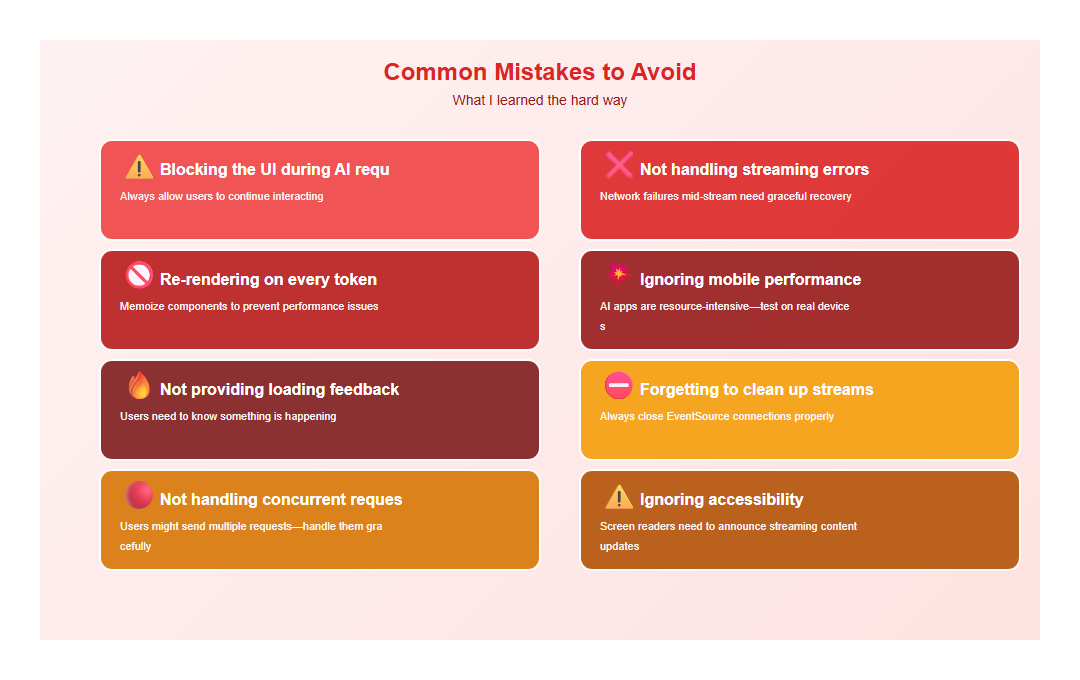
I’ve made these mistakes so you don’t have to:
- Blocking the UI during AI requests: Always allow users to continue interacting
- Not handling streaming errors: Network failures mid-stream need graceful recovery
- Re-rendering on every token: Memoize components to prevent performance issues
- Ignoring mobile performance: AI apps are resource-intensive—test on real devices
- Not providing loading feedback: Users need to know something is happening
- Forgetting to clean up streams: Always close EventSource connections properly
- Not handling concurrent requests: Users might send multiple requests—handle them gracefully
- Ignoring accessibility: Screen readers need to announce streaming content updates
9. Real-World Example: Complete Implementation
Let me show you a complete, production-ready example that combines all these patterns:
import React, { useState, useRef, useEffect } from 'react';
import { useConversationStore } from './store/conversationStore';
import { useStreamingLLM } from './hooks/useStreamingLLM';
import { MessageBubble } from './components/MessageBubble';
import { TypingIndicator } from './components/TypingIndicator';
import { ErrorMessage } from './components/ErrorMessage';

export function ProductionAIChat() {
  const {
    messages,
    addMessage,
    updateStreamingMessage,
    completeStream,
    setError,
    error,
  } = useConversationStore();

  const [input, setInput] = useState('');
  const [isSubmitting, setIsSubmitting] = useState(false);
  const messagesEndRef = useRef<HTMLDivElement>(null);

  const handleSubmit = async (e: React.FormEvent) => {
    e.preventDefault();
    if (!input.trim() || isSubmitting) return;

    setIsSubmitting(true);
    const userMessage = {
      id: Date.now().toString(),
      role: 'user' as const,
      content: input,
      timestamp: new Date(),
    };

    addMessage(userMessage);

    // Create streaming assistant message
    const assistantMessage = {
      id: (Date.now() + 1).toString(),
      role: 'assistant' as const,
      content: '',
      timestamp: new Date(),
      isStreaming: true,
    };

    addMessage(assistantMessage);
    setInput('');

    try {
      // Stream the response
      const response = await fetch('/api/chat/stream', {
        method: 'POST',
        headers: { 'Content-Type': 'application/json' },
        body: JSON.stringify({
          prompt: userMessage.content,
          conversation: messages.map(m => ({
            role: m.role,
            content: m.content,
          })),
        }),
      });

      if (!response.ok) throw new Error('Stream failed');

      const reader = response.body?.getReader();
      const decoder = new TextDecoder();

      if (!reader) throw new Error('No reader available');

      let buffer = '';

      while (true) {
        const { done, value } = await reader.read();
        if (done) break;

        buffer += decoder.decode(value, { stream: true });
        const lines = buffer.split('\n');
        buffer = lines.pop() || '';

        for (const line of lines) {
          if (line.startsWith('data: ')) {
            const data = JSON.parse(line.slice(6));
            if (data.type === 'token') {
              updateStreamingMessage(data.token);
            } else if (data.type === 'done') {
              completeStream();
            }
          }
        }
      }

      completeStream();
    } catch (err) {
      setError(err as Error);
      // Remove the failed assistant message
      // (implementation depends on your store)
    } finally {
      setIsSubmitting(false);
    }
  };

  useEffect(() => {
    messagesEndRef.current?.scrollIntoView({ behavior: 'smooth' });
  }, [messages]);

  return (
    <div className="production-ai-chat">
      <div className="messages-container">
        {messages.map((message) => (
          <MessageBubble key={message.id} message={message} />
        ))}
        {isSubmitting && <TypingIndicator />}
        {error && (
          <ErrorMessage
            error={error}
            onRetry={() => {
              setError(null);
              // Retry logic
            }}
          />
        )}
        <div ref={messagesEndRef} />
      </div>

      <form onSubmit={handleSubmit} className="chat-form">
        <input
          type="text"
          value={input}
          onChange={(e) => setInput(e.target.value)}
          placeholder="Ask anything..."
          disabled={isSubmitting}
          autoFocus
        />
        <button type="submit" disabled={isSubmitting || !input.trim()}>
          {isSubmitting ? 'Sending...' : 'Send'}
        </button>
      </form>
    </div>
  );
}
10. Conclusion
Building AI-powered frontends is challenging, but it’s also incredibly rewarding. When you get it right, users feel like they’re interacting with something truly intelligent—not just a web form that calls an API.
The key is thinking about the user experience first. Technical excellence matters, but it’s the small details—the loading states, the error messages, the streaming animations—that make an AI application feel magical.
Start with streaming, add proper state management, handle errors gracefully, and optimize for performance. Follow these patterns, and you’ll build AI frontends that users love.
🎯 Key Takeaway
In AI applications, the frontend is the product. A well-designed streaming interface can make a slow backend feel fast, while a poorly designed one can make a fast backend feel broken. Focus on perceived performance, user feedback, and graceful error handling—these are what separate good AI applications from great ones.
Discover more from C4: Container, Code, Cloud & Context
Subscribe to get the latest posts sent to your email.